
Full feature reference
LearnByAi Features: AI Document Chat, OCR, Voice, Comparison, and WhatsApp
One page covering every capability: what you can upload, how the app adapts to your document type, voice input, WhatsApp chat, multilingual responses, side-by-side comparison, and export.
- No account to start
- 8 document type profiles
- OCR on scanned files
- WhatsApp support
- Up to 50 languages
Start free, no card required
- Anonymous: 10 logical pages / day. No account required.
- Free account: 30 logical pages / day. Sign up, it's free.
- Pay as you go: Included pages + $0.02/page. $1 recharge = 50 included pages
No subscription. No recurring charge. Wallet funds never expire. See full pricing
What is a logical page?
LearnByAi measures document usage by the amount of extracted text content rather than physical PDF pages. This keeps the free allowance fair across PDFs, Word files, spreadsheets, presentations, and scanned documents, regardless of how the original file is formatted.
Video walkthrough coming soon
LearnByAi feature tour: upload, quick actions, compare, voice, and WhatsApp
Upload almost any document
Drag a file onto the page, click the + button in the input box, or use the upload area in the library. Multiple files can be uploaded in a single drop. The app runs a preflight check (quota, eligibility, and type detection) before processing.
- PDF (.pdf): Text-based or scanned. OCR runs automatically on image-only pages.
- Word Document (.docx): Full formatting and table support.
- Spreadsheet (.xlsx): Excel files: rows, columns, and sheet data all indexed.
- Plain Text (.txt): Any UTF-8 text file.
- Image (.jpg .png .tiff): OCR extracts the text so you can ask questions about it.
Scanned PDFs and photos of documents are processed automatically with OCR.
Automatic document type detection
When you upload, the app analyses the file and detects a document type, shown on the file chip in the input box. The type stays attached to the document and drives the quick actions and AI prompts for every chat. Documents in one chat must be the same type.
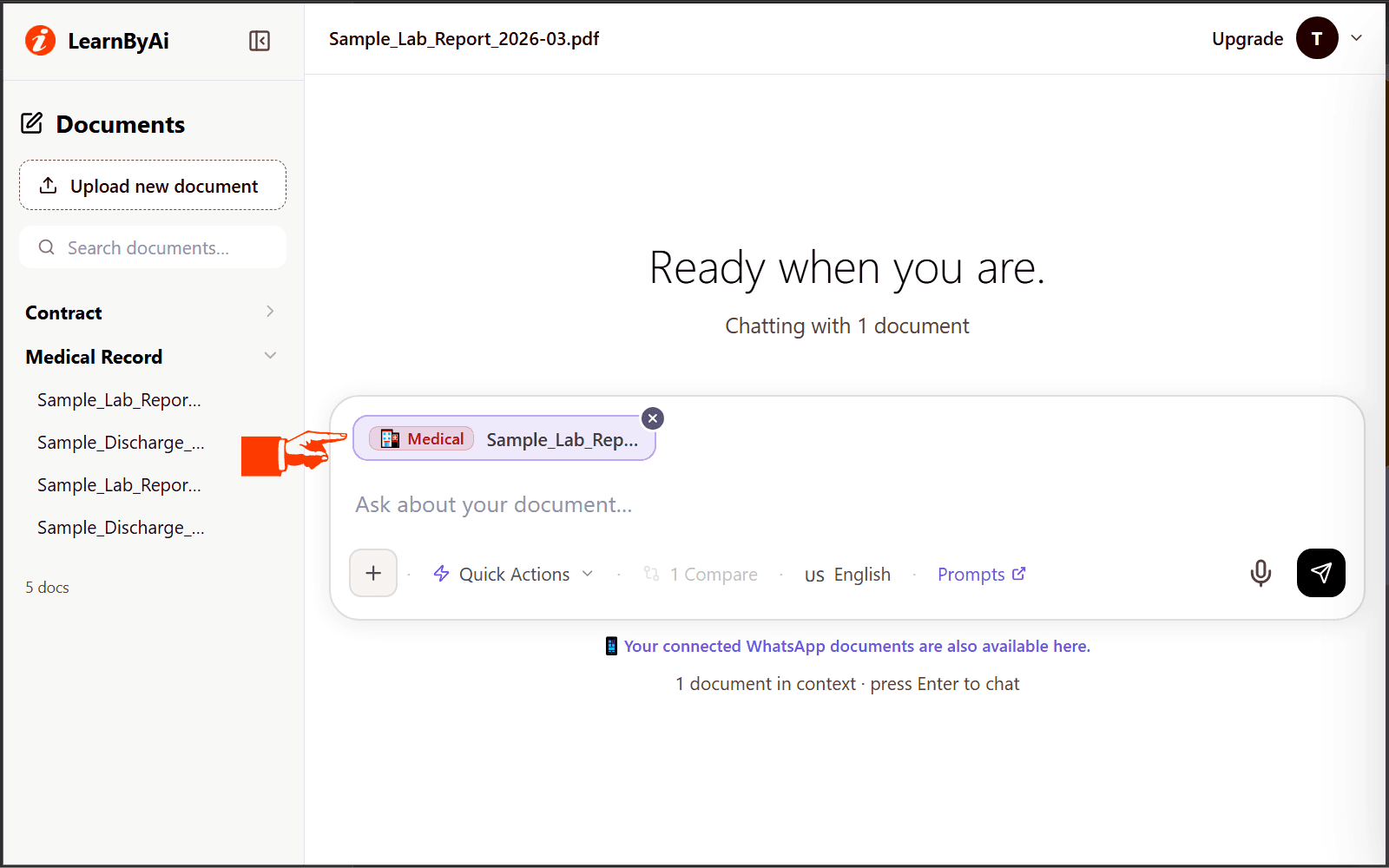
General Document
The default. Covers anything that doesn't fit a specialist type. Quick actions: Summarize, Key Points, Extract Dates, Generate Report. See the General Document page
Contract
Surfaces key terms, party roles, risk clauses, and timeline obligations. Quick actions: Obligations & Deadlines, Identify Parties, Risk Clauses, Plain-English Summary. See the Contract page
Legal Filing
Structured for pleadings, opinions, briefs, and court documents. Quick actions: Summarize Filing, Key Arguments, Identify Parties, Extract Dates. See the Legal Filing page
Medical Record
Plain-language summaries of health records, lab results, and discharge summaries. Quick actions: Summarize Record, Diagnoses & Findings, Medications & Dosages, Extract Dates. See the Medical Record page
Academic / Research
Research questions, methodology, findings, and a one-click study-notes export. Quick actions: Summarize Paper, Key Findings, Methodology, Study Notes. See the Academic / Research page
Financial Report
Revenue, margins, KPIs, and risk flags, pulled into a structured table. Quick actions: Financial Summary, Key Metrics, Risks & Opportunities, Reporting Periods. See the Financial Report page
HR Document
Policies, employment contracts, job descriptions, and handbooks. Quick actions: Summarize, Key Terms & Conditions, Roles & Responsibilities, Dates & Deadlines. See the HR Document page
Technical / Engineering
Scopes of work, specs, and engineering documents with deliverable tracking. Quick actions: Summarize, Requirements, Deliverables & Milestones, Risks & Constraints. See the Technical / Engineering page
One-click prompts tailored to the document type
Open Quick Actions above the input box for a set of pre-written prompts that switch based on the document type. A medical record gets “Diagnoses & Findings” while a contract gets “Risk Clauses”. Choosing an action sends a ready-made prompt to the AI with no typing required.
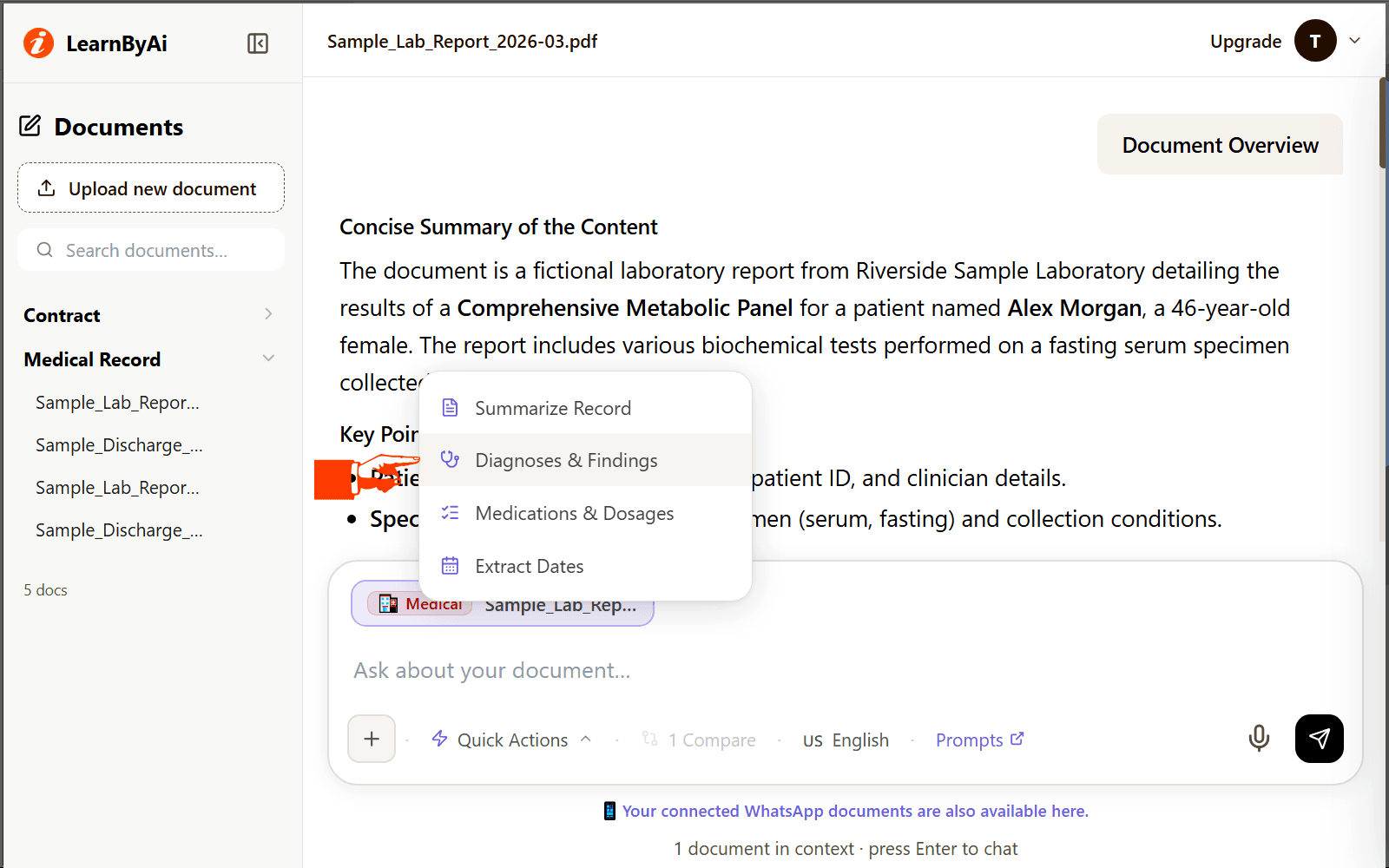
Ask questions, extract information, get answers
Add a document to the input box and ask anything in plain language. You get an answer based on the relevant passages of your document, with the source file shown so you can check it.
- Ask direct questions: "What are the payment terms?" or "What did the blood test show?" The AI finds the relevant passage.
- Summarize: Request a one-paragraph summary or a bullet-point breakdown of a section or the whole file.
- Extract structured data: Pull out dates, names, figures, obligations, diagnoses, or any structured list from the document.
- Generate reports: Produce a structured report with findings, key points, and recommended action items ready to share.
Compare documents side by side
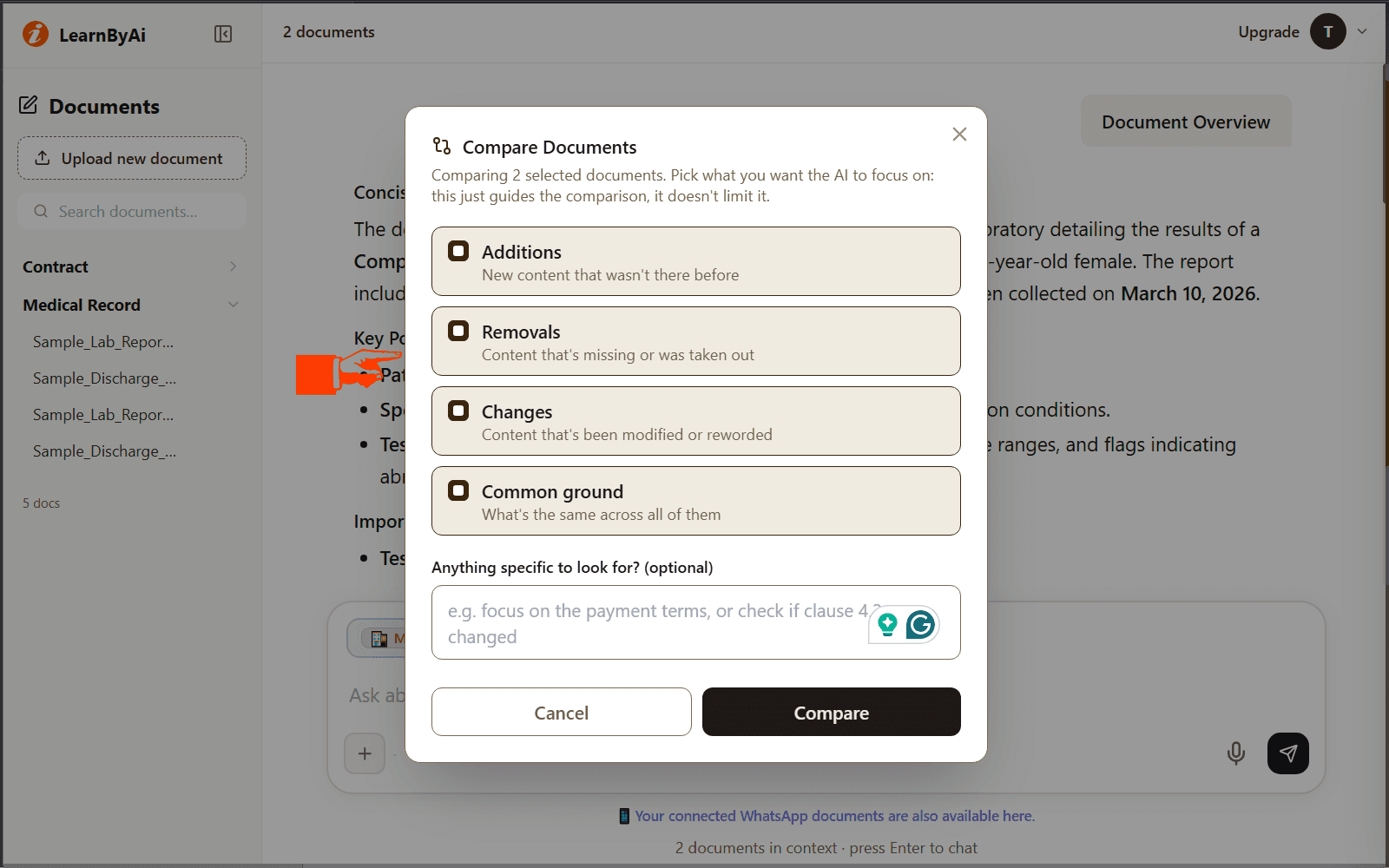
Compare mode works on documents in your library: two contract versions, two reports, two research papers. The documents you compare must be the same type.
- Add two or more documents: Add documents of the same type to the chat from your library.
- Choose focus areas: Pick additions, removals, changes, or common ground. Add freeform notes for the AI.
- Read the comparison: The AI compares the documents and highlights what is new, removed, changed, or common.
- Continue the conversation: Ask follow-up questions, request a risk assessment, or draft a change log, all in the same chat.
Document AI on WhatsApp
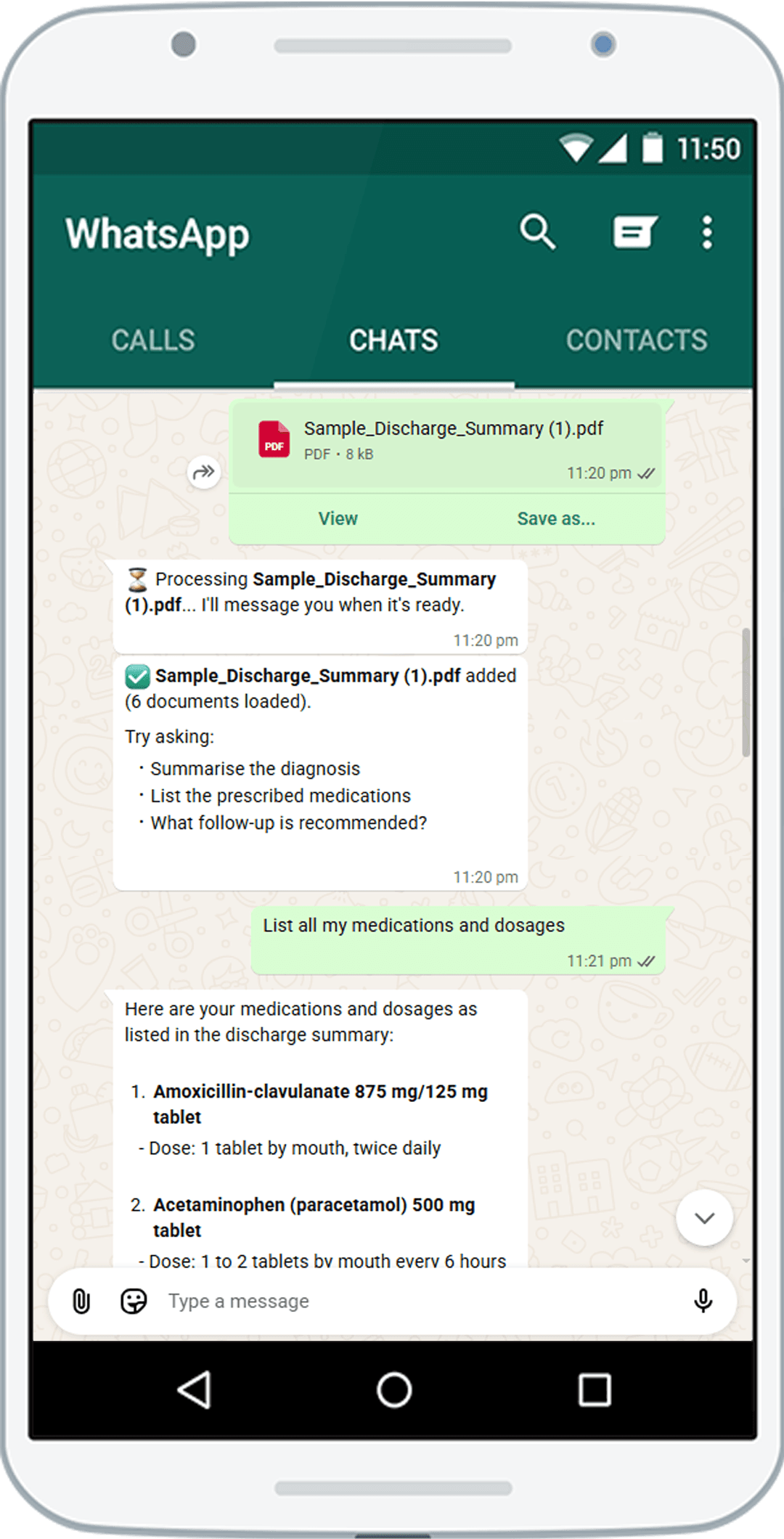
Use LearnByAi directly from WhatsApp. Send a document, ask a question, and get an AI answer, all inside the app you already have. No download, no app switching, no new account required to start.
- Send any document: Attach a PDF, DOCX, XLSX, TXT, or image file exactly like sending a file to a friend.
- Ask by text or voice: Type your question or send a voice note. You'll get a spoken reply back plus the full text answer.
- Compare documents: Send two documents and type /compare and the AI returns a structured comparison of additions, removals, and changes.
- Link your account: Send /link and tap the link it sends back to connect your WhatsApp to your LearnByAi account. History, wallet, and documents carry over.
Common commands
/help: List all available commands/documents: See documents loaded in your session/compare: Compare all loaded documents/language en: Set reply language (up to 50 languages)/balance: Check wallet balance or included-page count/link: Connect WhatsApp to your LearnByAi account/new: Clear documents and start a fresh session
Ask questions with your voice
A microphone button sits in the input box. Record your question, then stop and send it. The audio is transcribed automatically and sent as a query about your documents.
- Record a voice query: Click the mic in the input box, record your question, then stop and send it.
- Transcript in the chat: The transcribed text appears as your message, so you can verify exactly what the AI received and refer back to it.
- Audio reply: The AI's response comes back as text and as audio, read aloud with text-to-speech. The entire interaction can be hands-free.
Ask and receive answers in up to 50 languages
A language selector sits in the input box. Change it at any time and the AI replies in your chosen language. Supported languages include Arabic, Bengali, Chinese, French, German, Hindi, Indonesian, Japanese, Korean, Portuguese, Russian, Spanish, Turkish, Urdu, and more.
The selector lists 50 languages, shown in their own scripts: English, 中文, हिन्दी, Español, Français, العربية, বাংলা, Português, Русский, اردو, Bahasa Indonesia, Deutsch, 日本語, Kiswahili, मराठी, తెలుగు, Türkçe, தமிழ், Tiếng Việt, 한국어, Italiano, ภาษาไทย, فارسی, Polski, Українська, Română, Nederlands, Bahasa Melayu, ગુજરાતી, ਪੰਜਾਬੀ, ಕನ್ನಡ, മലയാളം, မြန်မာဘာသာ, Čeština, Magyar, Ελληνικά, Svenska, עברית, Dansk, Suomi, Norsk, Slovenčina, Български, Hrvatski, Српски, Lietuvių, Latviešu, Eesti, ქართული, Azərbaycan.
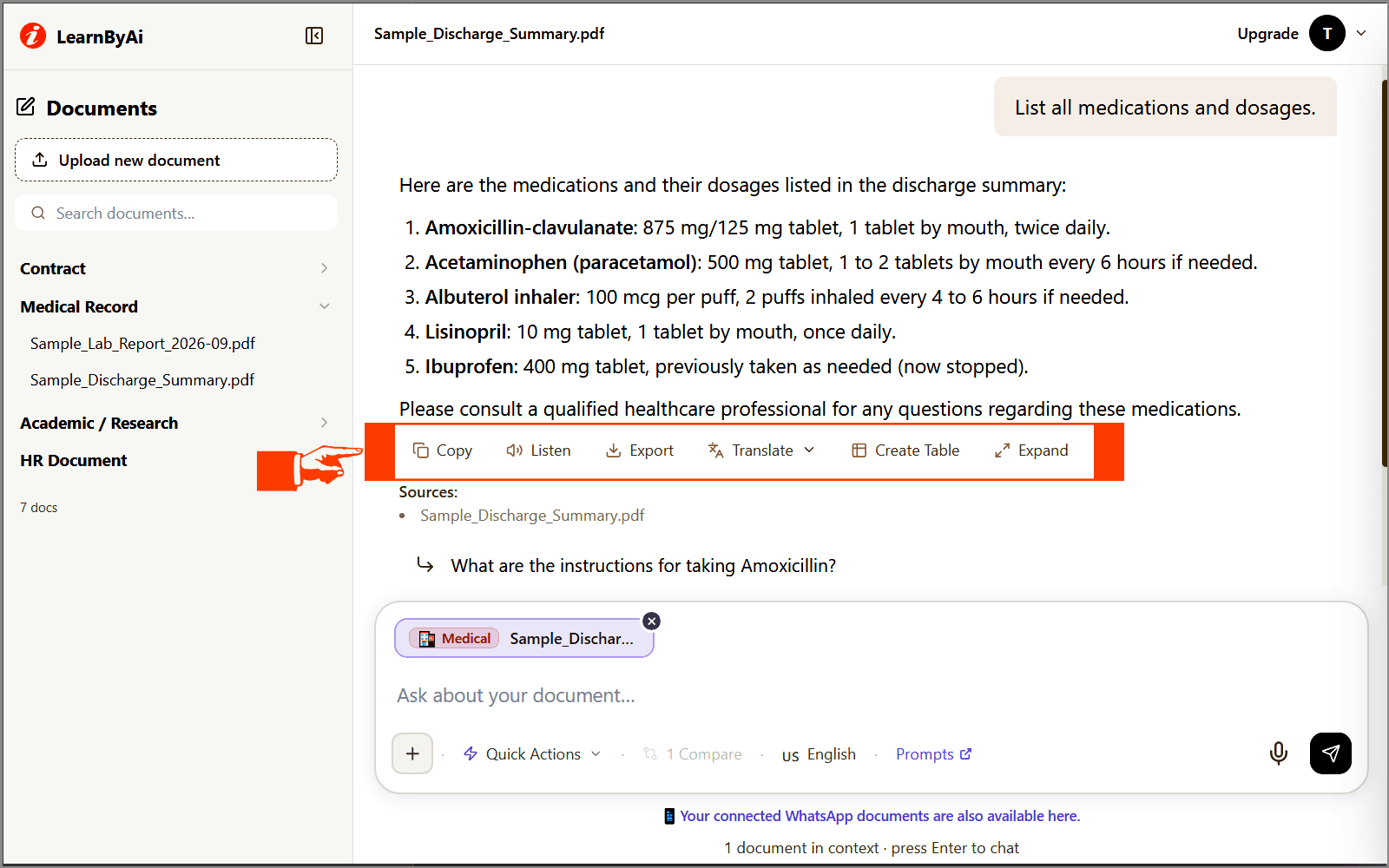
Actions under every AI response
Once the AI finishes a response, a row of buttons appears below the message. They apply to that individual response only, not global settings.
- Copy: Copies the full AI response text to your clipboard.
- Listen: Plays the response as speech. Generated on demand and played inline.
- Export: Download this response as a Word (.docx) or PDF file.
- Translate: Opens a language picker. Choose any of the supported languages and the response is translated.
- Create Table: Reformat the answer as a structured table.
- Expand: Get a more detailed, expanded version of this answer.
Download text as PDF or Word
Each document in your library has a three-dot menu. Inside it you will find download options, both for the original file and for the extracted (OCR) text.
- Save as PDF (.pdf): Exports the OCR-extracted text from any document as a clean, formatted PDF. Useful when the original was a scanned image or unselectable scan.
- Save as Word (.docx): Downloads the same extracted text as an editable Word file. Paste into reports, contracts, or any other document workflow.
How the app works: upload, add, ask, get answers
- 1. Upload and organise: Drag a file onto the page, use the + button in the input box, or use the library on the left. The document type is detected and your library groups documents by type.
- 2. Add to the chat: Add one or more documents of the same type to the input box. Your earlier conversation for that document set loads if you have one.
- 3. Chat: Ask questions, use quick actions, voice, and the language selector, compare documents, and use the actions under every response, including export.
Privacy and document retention
Each document is accessible only from your own session or account. Your documents are sent to our AI provider only to generate answers. How that data is handled is described in our Privacy Policy. Anonymous-session documents are cleaned up automatically once the session goes idle. You can delete any document manually at any time from the library. Full details on the Security page.
Frequently asked questions
What file types can LearnByAi analyse?
PDF (text-based and scanned), DOCX, XLSX, TXT, JPG, PNG, and TIFF. OCR runs automatically on scanned PDFs and image files.
What is a logical page?
LearnByAi measures document usage by the amount of extracted text content rather than physical PDF pages. This keeps the free allowance fair across PDFs, Word files, spreadsheets, presentations, and scanned documents regardless of how the original file is formatted.
How many pages can I upload for free?
Anonymous users get 10 logical pages per day with no account required. Creating a free account raises that to 30 logical pages per day. Pay-as-you-go users receive included pages with every wallet recharge ($1 = 50 pages), then pay $0.02 per logical page beyond their included balance.
Do I need an account to use LearnByAi?
No. Upload a document and start asking questions immediately. No sign-up required. A free account raises your daily allowance from 10 to 30 pages and keeps your history accessible during your session.
Can I use LearnByAi through WhatsApp?
Yes. Send a PDF, DOCX, XLSX, TXT, or image file to LearnByAi on WhatsApp and ask questions in the chat. No app to download. Voice messages, document comparison, and language switching all work on WhatsApp too.
Can I compare multiple documents?
Yes. Add two or more documents of the same type to the chat and choose Compare Documents. Pick what to focus on, such as additions, removals, changes, or common ground, and the AI compares them. Check the answer against each source document.
Do my documents train AI models?
Your content is sent to OpenAI's API only to generate your answers. Training and data-handling terms are described in our Privacy Policy and Security page. Each document is accessible only from your own session or account.
How long are my documents stored?
You can delete any document manually at any time. Anonymous-session documents are cleaned up automatically once the session goes idle.
Ready to try it?
No account required. Upload a document and ask your first question.