
User guide
How to Chat with Your Documents Using AI
LearnByAi lets you upload any document and have a natural conversation with it: asking questions, extracting information, comparing files, and generating summaries. This guide walks you through every feature, from your first upload to comparing documents.
What you can do with document chat
- Upload PDFs, Word docs, spreadsheets, text files, and scanned images
- Ask plain-language questions and get answers based on your documents, with the source file shown
- Work with 8 document types, detected automatically, for optimised AI responses
- Use quick-action buttons for one-click summaries, key points, and reports
- Compare two or more documents to find differences and similarities
- Chat in up to 50 languages with voice input and text-to-speech output
- Pick up an earlier conversation when you add the same documents again
- Export, download, or save extracted text from any document
Video walkthrough coming soon
How to chat with a document using AI: a LearnByAi walkthrough
Step by step: your first chat
Step 1: Upload your document
Drag and drop a file onto the page, click the + button in the input box and choose Upload, or use the upload area in the library on the left. You can upload multiple files at once.
Supported formats: PDF, DOCX, TXT, XLSX, JPG, PNG, and TIFF (OCR).
Scanned PDFs and image files are processed with OCR, so text in photos and scans is extracted automatically. Results depend on scan quality.
Step 2: Check the detected document type
LearnByAi detects what kind of document you uploaded and shows the type on the file chip in the input box. The type decides which quick actions and prompts are used: a contract gets clause-extraction prompts, a medical record gets terminology-explanation prompts. The types are:
- General Document
- Contract
- Legal Filing
- Medical Record
- Academic / Research
- Financial Report
- HR Document
- Technical / Engineering
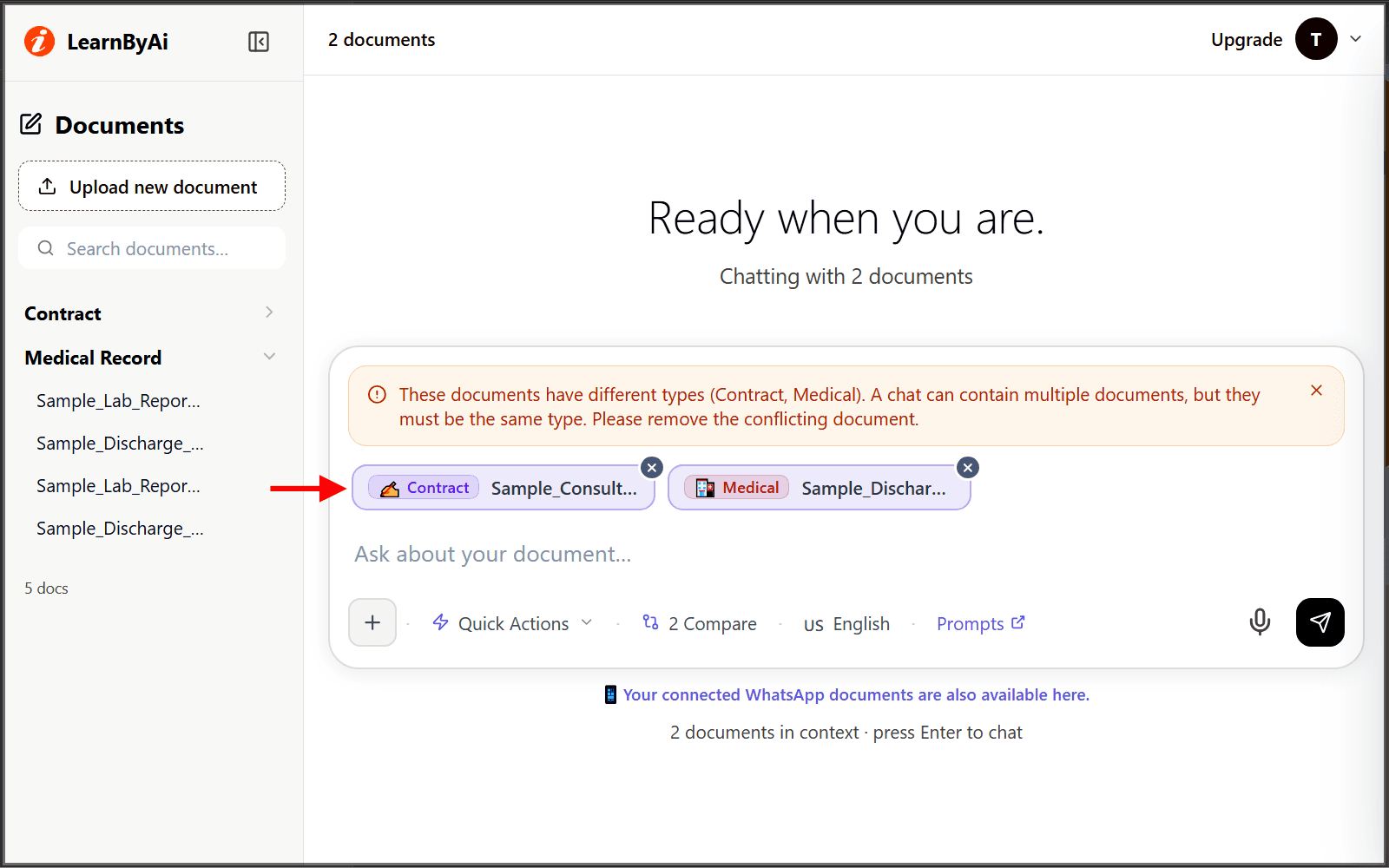
One type per chat
Step 3: Add documents to the chat
Your uploaded documents appear in the library on the left, grouped by type. Click Add next to a document to place it in the input box as a chip. Add several documents of the same type for a multi-document chat or a comparison. Remove a chip with the × on it.
Step 4: Ask questions in plain language
Type a question in the input box and press Enter or click Send. You do not need special syntax, ask naturally:
- What are the termination conditions in this contract?
- Summarise the key findings of this research paper
- What medications are listed in this medical record?
- Are there any red flags in this financial report?
- Who are the parties involved in this agreement?
- What are the deliverables and deadlines?
The AI retrieves the most relevant passages from your documents and writes an answer. Each response includes a Sources section showing which documents contributed. If you add a document and press Enter without typing a question, LearnByAi generates an overview of the document.
Using quick-action buttons
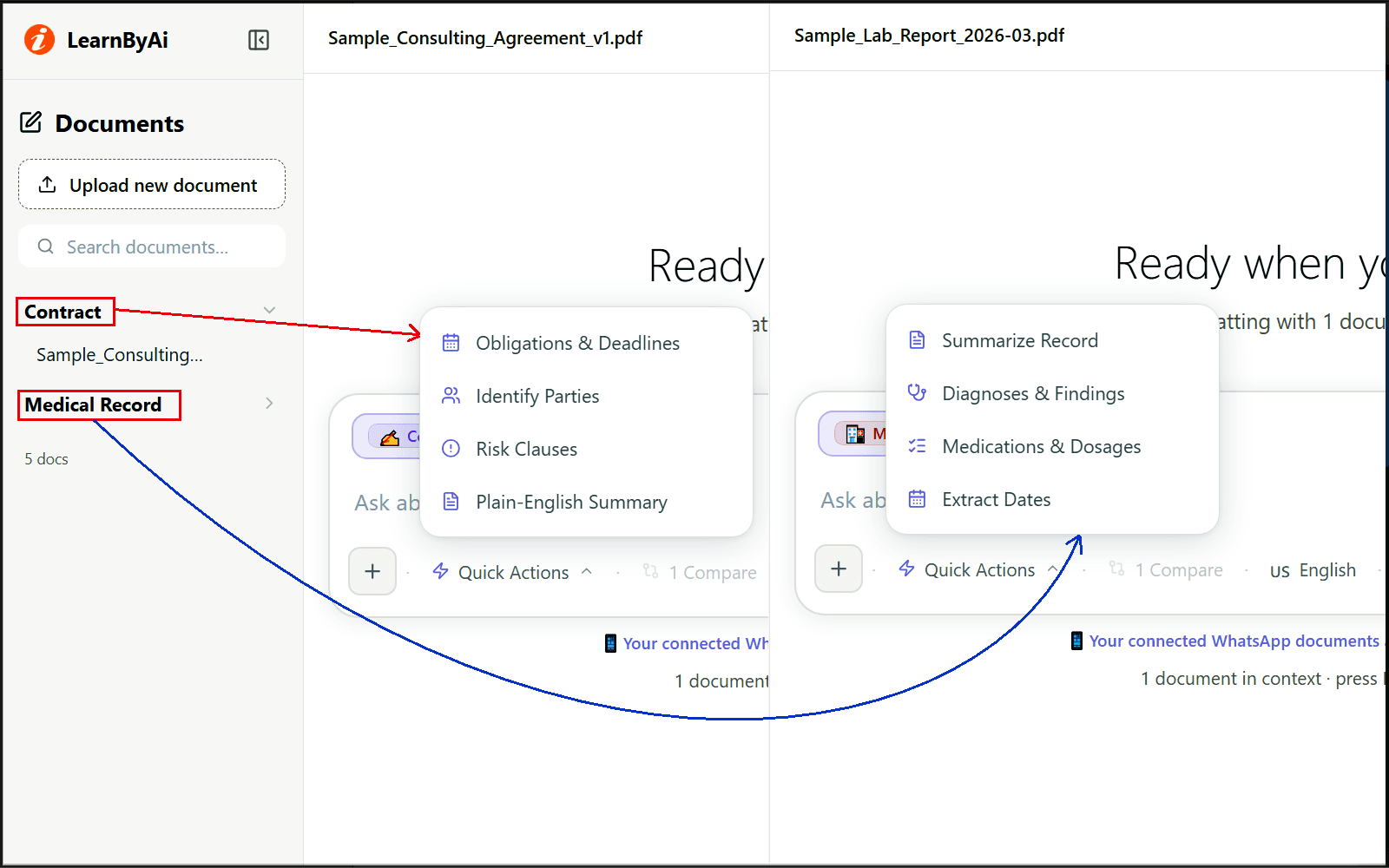
Open Quick Actions above the input box to find pre-written prompts you can run with one click. They change depending on your document type:
- General Document: Summarize, Key Points, Extract Dates, Generate Report
- Contract: Obligations & Deadlines, Identify Parties, Risk Clauses, Plain-English Summary
- Legal Filing: Summarize Filing, Key Arguments, Identify Parties, Extract Dates
- Medical Record: Summarise Record, Diagnoses & Findings, Medications & Dosages, Extract Dates
- Financial Report: Financial Summary, Key Metrics, Risks & Opportunities, Reporting Periods
- Academic / Research: Summarise Paper, Key Findings, Methodology, Study Notes
- HR Document: Summarise, Key Terms & Conditions, Roles & Responsibilities, Dates & Deadlines
- Technical / Engineering: Summarise, Requirements, Deliverables & Milestones, Risks & Constraints
A Compare Documents action is also available when two or more documents are added to the chat.
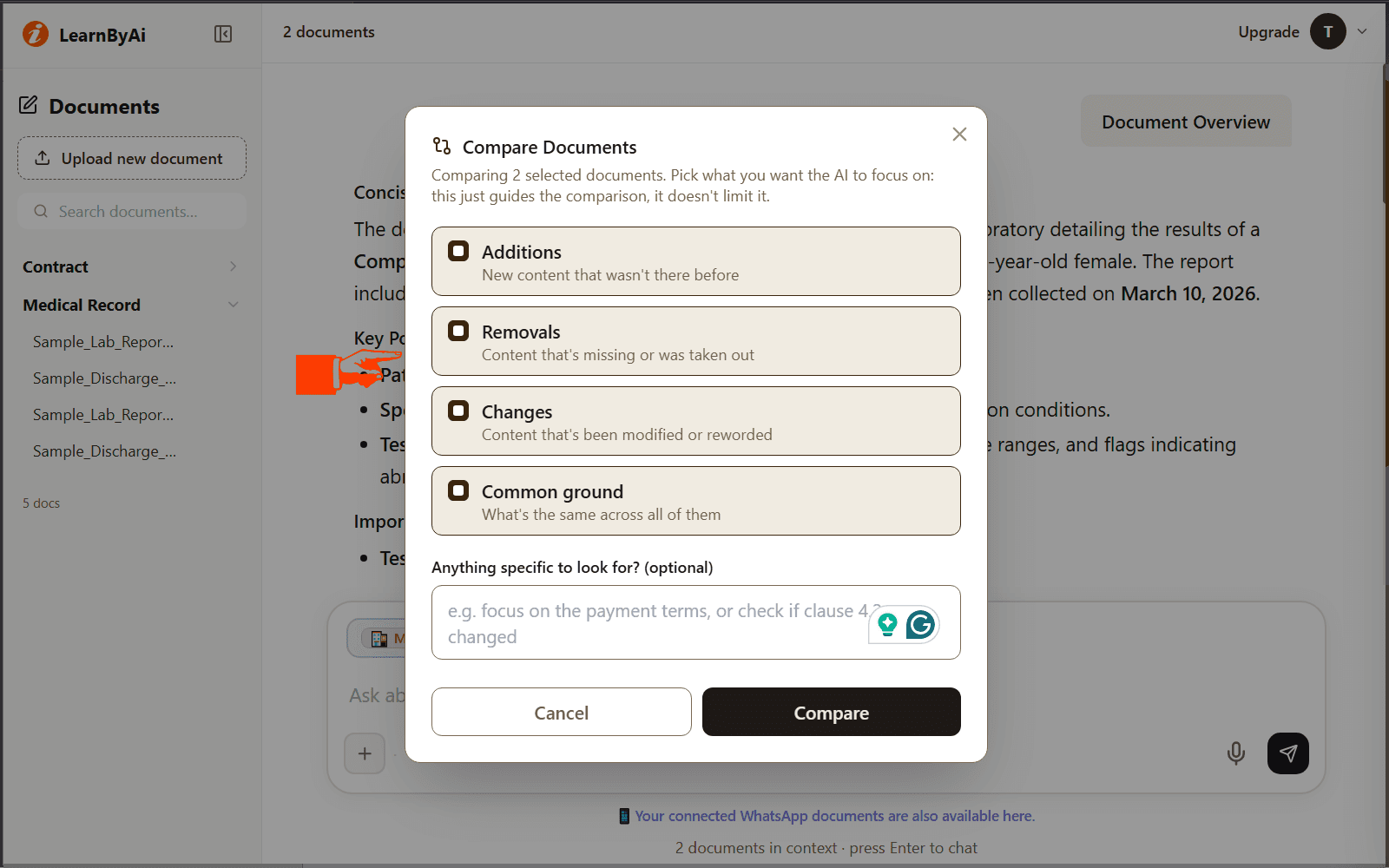
Comparing multiple documents
- Add two or more documents of the same type to the input box
- Choose Compare Documents, in the input box or in Quick Actions
- In the dialog, choose what to compare (additions, removals, changes, common ground) and add any specific notes
- The AI analyses the selected documents together and highlights what is new, removed, changed, or common
- Sources list the documents that contributed to the comparison
Voice input and text-to-speech
Voice input (speech-to-text)
Click the microphone icon in the input box to record a voice query, then stop and send it. LearnByAi transcribes your speech, shows the transcript as your message, and replies in text and audio. Voice input works across the supported languages (up to 50).
Listen to responses
Every AI response has a Listen button. Click it to hear the response read aloud using text-to-speech. Useful for accessibility, hands-free review, or listening while reading along.
Multi-language support
LearnByAi supports up to 50 languages. To change the response language, use the language button in the input box, which shows the current language. The AI will respond in the selected language even if your document is in a different language.
This is especially useful for translating document content: switch the language and ask “summarise this document” to receive the summary in your chosen language. Accuracy can vary by language, so check important details against the original.
Actions under every answer
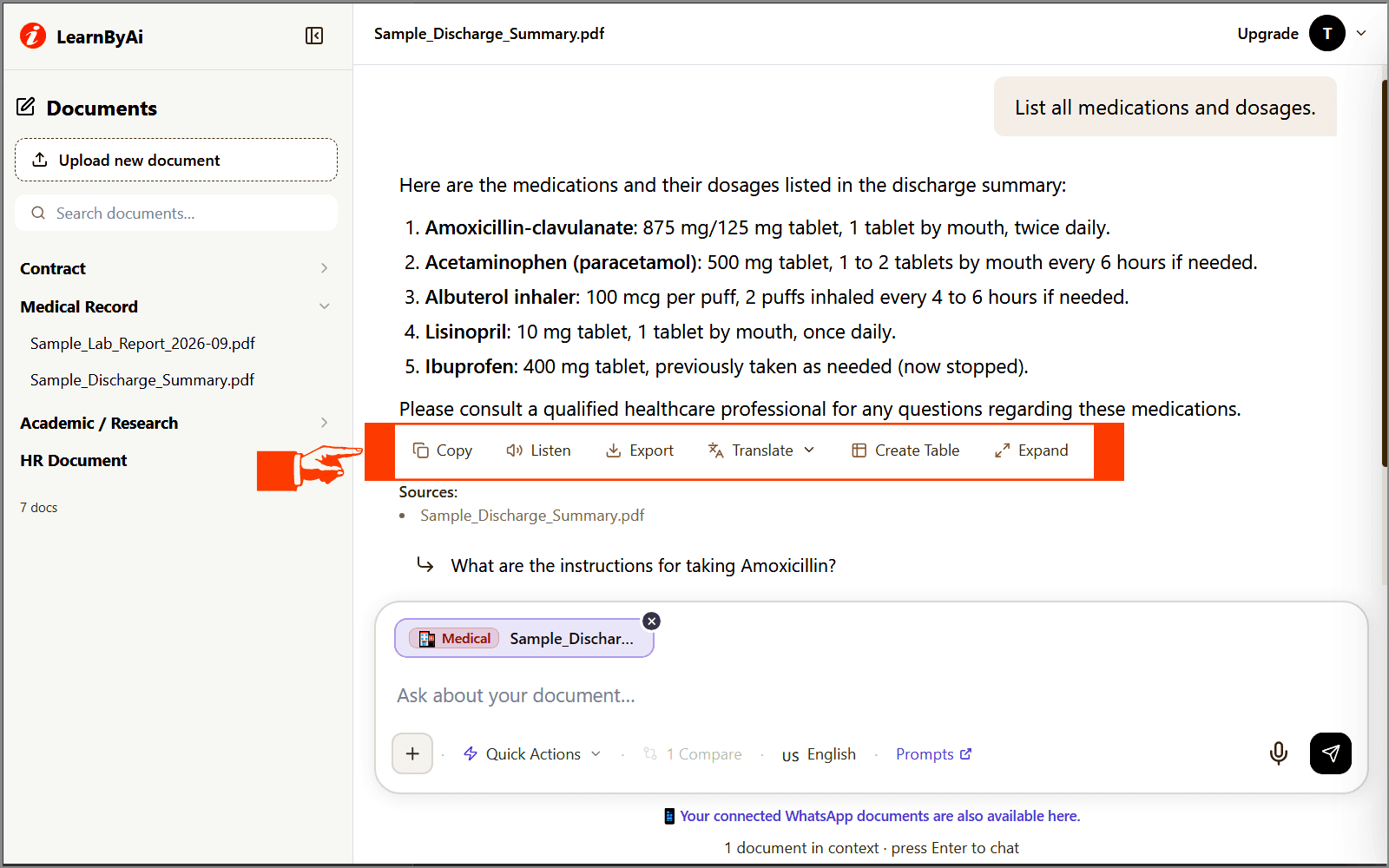
Below every AI response you will find a row of action buttons:
- Copy: Copy the response text to your clipboard
- Listen: Hear the response read aloud using text-to-speech
- Export: Download this response as a Word (.docx) or PDF file
- Translate: Translate this response into any of the supported languages (up to 50)
- Create Table: Reformat the answer as a structured table
- Expand: Get a more detailed, expanded version of this answer
Chat history
Conversations are saved for the documents you chat with. When you add the same document, or the same combination of documents, again, your earlier conversation for that selection loads automatically so you can pick up where you left off. Adding Document A alone and adding Document A with Document B are separate conversations, which keeps context clean.
Authenticated users keep their history across devices. Anonymous-session documents are cleaned up automatically once the session goes idle.
Managing your documents
- Download Original: Click the three-dot menu next to any document name, then select Download Original to retrieve the file you uploaded.
- Save Text As: The three-dot menu also offers Save Text As: download the AI-extracted text from your document as a .docx or .pdf file. Useful for archiving the processed content.
- Delete a Document: Select Delete from the three-dot menu. This removes the file from storage, its vector embeddings from the AI database, and all associated chat history. This action cannot be undone.
- Document Type Groups: Documents are grouped by type in the library (General, Contract, Medical, and so on). Only one group can be expanded at a time. Click the group header to expand or collapse it.
Frequently asked questions
Do I need an account to use document chat?
No. You can upload documents and start chatting immediately without signing up. Anonymous users get 10 logical pages per day with no account required. Creating a free account raises that to 30 logical pages per day. Creating a free account also saves your history across sessions.
What file types are supported?
PDF, DOCX, XLSX, and TXT files, plus JPG, PNG, and TIFF images. Scanned PDFs and photos of documents are processed automatically with OCR so you can search and ask questions about their text. Scanned documents and photos are processed with OCR to extract text before indexing.
Is my document data private?
Each document is accessible only from your own session or account, and other users cannot open it. You can delete any document at any time to remove it from storage and from the AI index.
Why can a chat only hold documents of the same type?
Each document type uses its own AI collection, tuned for that kind of content, so a chat holds one type at a time. If you add a document of a different type, a warning appears and you need to remove the conflicting document or use a separate chat.
Can I chat with multiple documents at once?
Yes. Add two or more documents of the same type to the input box. The AI retrieves relevant passages from all of them when it answers. Use Compare Documents to get a structured comparison.
What languages are supported?
Up to 50 languages. Use the language button in the input box to set the response language. Voice input through the microphone is also available.
How is billing calculated?
Free accounts get 30 logical pages per day and 15 messages per day at no cost. After that you top up a pay-as-you-go wallet and pay only for what you use. See the Pricing page for current prices.
What happens if the answer is not in my document?
Answers are based on passages retrieved from your uploaded documents. If the information is not in the document, a good answer says so. If a reply looks like it contains something that is not in your file, check the original document.
Explore by document type
Ready to start?
No account required. Upload your first document and ask your first question.